Maximize Multiple Monitors with UltraMon

May 22, 2008 – 8:37 am by Gabe Anderson | 1 Comment »

When I get a new Windows machine or reinstall an operating systems, one of the first things I do after installing the OS and drivers is install an invaluable little utility called UltraMon. It’s really the only way to experience dual monitors.

UltraMon

Doesn’t Windows have built-in dual monitor support? Sure, but it’s very limited. And it doesn’t allow you to do all the cool stuff that UltraMon does.

UltraMon options

Features, as noted on the UltraMon site (followed by my commentary):

  • efficiently move windows and maximize windows across the desktop (one-click button to make a window jump to other monitor)
  • manage more applications with the Smart Taskbar (unique task bar for each monitor to accurately display running apps)
  • control application positioning with UltraMon Shortcuts (for example, I can create a shortcut, accessible via my desktop or even when I login to my computer, to launch PowerPoint, maximized on monitor 1 — or even with custom resolution settings for the monitor)
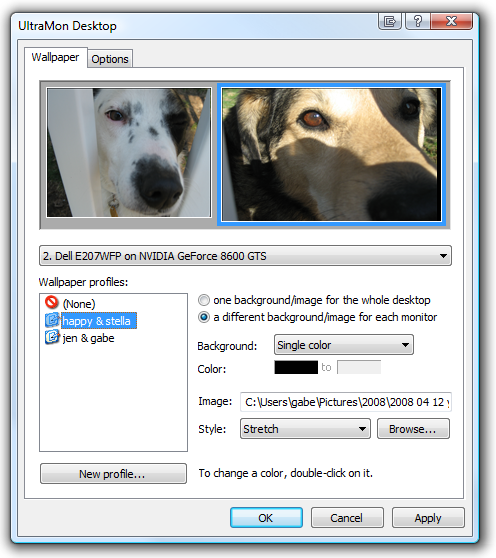
  • multi-monitor support for desktop wallpapers and screen savers (set up wallpaper profiles and show a different background for each monitor; run a different screensaver on each monitor):

    UltraMon Wallpaper Manager

  • mirror your main monitor to secondary monitors for a presentation (just like the built-in functionality in most Windows laptops)

If you sport dual monitors — and if you don’t, you really should since you won’t believe how much more awesome it is and how much more productive you can be (your productivity will more than double) — then your first utility to install should be UltraMon.

[ Subscribe to gabeanderson.com via email or RSS feed. ]

Get $1 to Stop Junk Mail with GreenDimes

May 14, 2008 – 8:51 am by Gabe Anderson | 2 Comments »

Who actually likes junk mail? Assuming you’re like most of us and hate it, the good news is that you don’t have to be powerless against it. There are a number of services available to help you stop it from overpowering your mailbox and invading your life.

I’d read about the free services way back when, but never signed up for one since it seemed like kind of a pain and I didn’t really feel like going through the process of opting out from the multitude of direct marketers’ lists. But a couple weeks ago, while reading this post on GetRichSlowly, one service caught my eye: GreenDimes.

GreenDimes

My favorite part about GreenDimes? The part where I don’t have to do anything besides sign up. So sign up I did (on May 3, 2008) — I opted for the $20 Premium account (one-time fee) so that GreenDimes would do all the work for me — and the junk mail stopped flowing in almost immediately.

It’s only been a couple weeks and our mailbox is beginning to feel a little lonely. When the occasional catalog does sneak in, I just login to my GreenDimes account, search its vast database of vendors, and with a single click tell GreenDimes to go after the mailer on my behalf. It’s brilliant.

GreenDimes Admin

But it gets better!

If you’re not interested in paying 20 bucks (it was well worth it to me), you can actually have GreenDimes pay you $1 to stop your junk mail. If you go that route, you get the Basic account and have to do some opt-out work yourself, but who doesn’t want to stop junk mail? Go for it!

With my Premium account, I get all this good stuff:

  • 5 years junkmail protection (sweet!)
  • Proven system that will significantly reduce postal junk mail (bring it!)
  • Catalog Screener (works like a charm)
  • Automatic removal from common junk mail lists (oh yeah!)
  • Monthly junk mail list monitoring (rockin’!)
  • Protect unlimited number of household names (key to have both me & my wife listed)
  • Postage-paid postcards for special mail list removals (since some mailers make it difficult to remove your name)
  • 5 trees planted on behalf of member (trees rule!)
  • 24/7 Customer service (I like CS!)

The highest-level plan — the Bundle — gets you all that and more goodies, like energy-efficient light bulbs and a reusable shopping bag.

I like that GreenDimes is going after the environmental angle — hence encouraging people to sign up by paying them $1. I’m sure the business angle there is that they’ll generate a lot of buzz and get enough people like me to pay for the Premium or Bundle plans to more than make up for the $5 million they’re investing in the $1 sign-up program.

GreenDimes rocks and yes, it actually works!

[ Subscribe to gabeanderson.com via email or RSS feed. ]

Marathon Timing Technology & Networking with LinkedIn

April 29, 2008 – 9:29 am by Gabe Anderson | Comments Off on Marathon Timing Technology & Networking with LinkedIn

su_chip_small.jpg This past weekend my wife and I, along with a group of six close friends, headed south to Nashville, TN, where four of us ran in the Country Music 1/2 Marathon. It was my first 1/2 marathon and I beat my personal goal by a solid 6 seconds, clocking in a chip time of 1:44:54.

The timing chips, from a company called ChampionChip, were fastened to each runner’s shoe, and ensure accurate start and finish times, triggering when one crosses the start and finish lines, where we all ran across magnetized mats that communicated with the chips. With 30,000 runners, some people didn’t even get to the finish line until as much as an hour after the race officially began. And with the help of this cool chip technology, friends at home and around the globe could monitor our progress in real time via the Web.

What if we all wore similar tracking devices in our everyday lives? Obviously there are oodles of privacy concerns with a proposition like that, but there are lots of cool benefits, too — see where your friends are; meet up with family members if your paths happen to cross; keep tabs on sneaky teenagers; safely monitor elderly grandparents with Alzheimer’s.

While running the race and while traveling to Nashville, I thought about the concept of six degrees of separation. How many of the people at my layover in Chicago had I crossed paths with before? How many of them would I see again? And in the race, besides my group of friends, did I know anyone else or have any connection to any of the 30,000 people?

It would be cool to see a dynamic race map that showed all runners’ positions as well as other stats like hometown, age, and maybe even how each runner is connected to the others. For example, while playing around with the race results search, I found that there was one other person not with our group who had traveled from our town; there was one other Gabe; there were 77 other Andersons (I placed 4th overall among Andersons); and there were 735 other people my age (264 other men).

With so much data available just based on simple vitals like name, hometown, age, and gender, how else could we all be connected?

Until we’re all wearing personal location devices, we can stay connected through sites like LinkedIn, which is a networking site for professionals; it’s like your online resume. Think MySpace or Facebook without all the clutter and social elements. LinkedIn is a truly useful tool for establishing and harvesting professional connections between you and your friends, your current and former colleagues, business associates, and more.

linkedin.gif

With LinkedIn, you can do things like the following:

  • Establish 1st-degree direct connections with people
  • Search your network based on name, company, location
  • See how you’re connected to people
  • Discover that you & someone else you know may be connected in a way you didn’t realize though a mutual contact
  • Post job listings & find contractors who specialize in particular skills
  • Search job listings

It’s similar to the type of data I was searching in my 1/2 marathon race results, but from a professional standpoint. In Chicago, my wife and I were debating with our friend traveling with us about the concept of six degrees of separation and how powerful it is.

For example, if you look at my LinkedIn profile page, you’ll see that I have 198 connections. Dive a little deeper and learn that my 198 connections “link (me) to 1,417,600+ professionals.” That’s a lot of people.

linkedin connections

The power of networking, combined with searchable data, is pretty awesome. It’ll be interesting to see what the future brings.

[ Subscribe to gabeanderson.com via email or RSS feed. ]

Copy File Path to Clipboard

April 13, 2008 – 2:31 pm by Gabe Anderson | 2 Comments »

Let’s say you’re sending an email via your Gmail or other Web email account and want to attach a file. Or maybe you’re uploading a file to your blog or just about any other Web-based application, but you’d rather not bother with that annoying Browse button since you’re already looking at the file on your desktop or in an open window. What do you do? Unless you’re using Outlook and can simply drag ‘n drop the file into your email message, it can be a pain to get a file into a Web email or Web app.

Enter a super-simple utility that will make this process really easy: ClipboardPath. Just download and install it, and then you’ll be able to right-click on any file to Copy Path to Clipboard:

Copy Path to Clipboard

…then simply press control-V to paste your file into your Web-based email attachment field, WordPress file upload field, or whatever Web application you’re using:

Control-V to paste

If there’s a field with a browse button, you can kiss that browse button goodbye.

[ Subscribe to gabeanderson.com via email or RSS feed. ]

Faster Downloads with Internet Download Manager

April 9, 2008 – 8:38 am by Gabe Anderson | Comments Off on Faster Downloads with Internet Download Manager

Now that you know how to hide the annoying Firefox downloads status window, it’s time to make your downloads really scream.

IDM

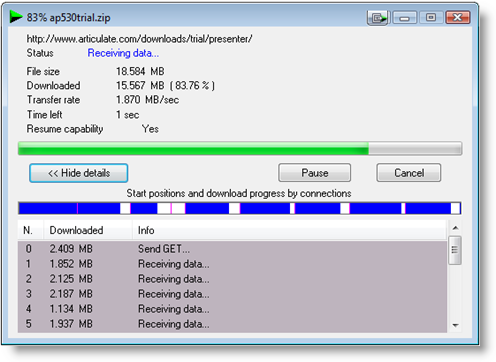
Enter Internet Download Manager (IDM) — the great little utility with the ugly logo. Once you start using IDM, you’ll never want to go back. Downloads are so fast — I get nearly 2 MB per second download speeds — that I actually had a hard time capturing this screenshot of an 18-megabyte download in progress:

Internet Download Manager

Sure, part of all that speed is due to my rockin’ Road Runner Turbo cable Internet connection, where I’ve clocked up to 15 megabits per second download times, but believe me when I say that you’ll notice a huge difference with IDM.

It also gives you all these cool features:

  • Automatic file type download connection
  • Auto-segmenting of downloads into directories based on type
  • Download scheduling
  • YouTube video grabbing
  • Download resume
  • And lots more features

Get IDM and super-fast downloads will be yours!

[ Subscribe to gabeanderson.com via email or RSS feed. ]

How to Hide the Firefox Downloads Status Window

April 7, 2008 – 8:52 am by Gabe Anderson | 12 Comments »

I don’t know about you, but when I download something, I just want to click a link, have the file or application download, then get to it when I’m ready to open the file or launch the application. If I’m downloading a large file, especially, I don’t need to watch the status. I’d rather get back to work on other stuff and I certainly don’t need to see this window:

Firefox Download window

Hiding this status window is as easy as 1, 2, 3 (4, 5):

  1. Open up a new tab in Firefox (control-T, as you might recall from my earlier post on Firefox shortcuts).
  2. Type about:config into the address bar and hit Enter.
  3. In the Filter field at the top, type download:

    download filter

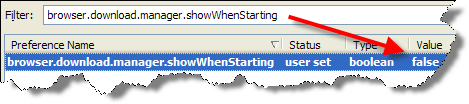
  4. Look for the option called browser.download.manager.showWhenStarting (you can also filter for exactly that phrase).
  5. Double-click that option and the value will change to false:

    browser.download.manager.showWhenStarting

That’s it! Next time you download a file, you don’t have to worry about the annoying status box, but you can check on it at any time by pressing control-J to open the window.

[ Subscribe to gabeanderson.com via email or RSS feed. ]

AutoHotkey: Script Shortcuts, Mouse Clicks, More

April 1, 2008 – 9:00 am by Gabe Anderson | Comments Off on AutoHotkey: Script Shortcuts, Mouse Clicks, More

Yesterday I downloaded a great little application that a coworker recommended: AutoHotkey. Similar to Texter or other utilities that allow you to assign keyboard shortcuts to input text strings, AutoHotkey does all that and more. And, unlike Texter, it works on Vista (and XP), and I haven’t run into the same little quirks that I’ve run into with Texter in the past (scripts would go missing, keyboard shortcuts wouldn’t work).

AutoHotkey

I’ve only just scratched the surface of what’s possible with AutoHotkey, which allows you to do things like the following:

  • “Automate almost anything by sending keystrokes and mouse clicks.”
  • “Create hotkeys for keyboard, joystick, and mouse.”
  • “Expand abbreviations as you type them. For example, typing ‘btw’ can automatically produce ‘by the way.'”

As just one example of how AutoHotkey goes beyond Texter, yesterday I created a shortcut to create my signature that I use in Outlook replies to customers (by default, I don’t have my sig appear in replies since there’s no reason to include it on internal responses to colleagues) — including bolding some of the text, which is not possible in other scripting apps I’ve used. So now I can just type Ctrl-Shift-S and get the following:

Gabe Anderson
Director of Customer Support
Articulate – Empowering Rapid E-Learning
www.articulate.com

Here’s how to get started with a simple example like this:

  1. Download & install AutoHotkey.
  2. Save & extract this zip file anywhere on your computer.
  3. Double-click the autohotkeys.ahk file. You’ll see this green “H” icon appear in your taskbar:

    autohotkeys icon

  4. Right-click the green “H” and select Edit This Script to edit the text to match your own signature (and create other text shortcuts as desired):

    Edit This Script

  5. Save & close the script file.
  6. Right-click the green “H” and select Reload This Script to load your changes (AutoHotkey will tell you if you have any syntax errors in your script):

    Reload This Script

  7. Reply to an email and test it out by typing Ctrl-Shift-S (or whatever hotkeys you chose).

The documentation includes lots of great examples so you can explore what else is possible, from launching applications to activating and manipulating windows.

Give it a shot and have fun! Remember: Less time using your mouse means more productivity.

By the way, you can create multiple scripts, each of which can run in its own instance in your task bar, or create one script file to contain all your goodies. Then you can set each one (or your one master script file) to launch at startup (drop a shortcut in your Start Menu\Programs\Startup folder — path will vary whether you’re on XP or Vista).

[ Subscribe to gabeanderson.com via email or RSS feed. ]

Firefox Tab Tips

March 21, 2008 – 8:21 pm by Gabe Anderson | 4 Comments »

People who know me know that I’m all about using keyboard shortcuts whenever possible. Why? When my hands spend more time on the keyboard and less time on the mouse, I can maximize productivity and get more done in less time. So long as a shortcut exists and you know it well, the keyboard will always beat the mouse.

firefox

Along those lines, here are some of my favorite Firefox tab tips (some involving keyboard shortcuts, others not):

  • Instead of opening your home page when Firefox starts, set it to restore your tabs & windows from last session (and you can still have a link associated with the home page icon): Tools -> Options -> Main -> When Firefox starts -> Show my windows and tabs from last time. That way, you can open a bunch of tabs for things that interest you or things you have to do, and can always pick up where you left off, should your computer or browser crash, or you simply need to restart Firefox for some reason.
  • Set links that open a new window to open a new tab instead: Tools -> Options -> Tabs -> New pages should be opened in -> A new tab.
  • Control-T, of course, will open a new tab for you to use as you please.
  • Control-Tab to move forward/right to the next tab.
  • Control-Shift-Tab to to move backward/left to the previous tab.
  • Control-W closes a tab.
  • Control-Shift-T will reopen that last tab you just closed — great for those accidental closes. And you can even do it repeatedly to reopen all the previous tabs you had open.
  • Control-Click to open your clicked on link in a new tab (but remain on your active tab).
  • Control-Shift-Click to open your clicked on link in a new tab (and immediately make it your active tab).

Enjoy these time-saving tips!

[ Subscribe to gabeanderson.com via email or RSS feed. ]

Use FeedBurner to Manage RSS & Email Subscriptions

March 16, 2008 – 8:41 pm by Gabe Anderson | Comments Off on Use FeedBurner to Manage RSS & Email Subscriptions

So you have your blog set up. Maybe you even have a few fans read your blog regularly and wait eagerly for your next post to go live (come on, I know you gabeanderson.com 6.0 fans are out there somewhere, right?). Then your readers start asking you about RSS feeds and email subscriptions.

Wait a minute… RS-what? If you’re not sure what RSS is (hint: it stands for Really Simple Syndication and allows people to read your blog without going to your blog), take a minute to check out the first tab in this interaction that my coworker Tom pulled together for his post on 5 Ways Web 2.0 Can Make You a Better E-Learning Designer (the video, RSS in Plain English, was created by commoncraft).

Now that you know what RSS is all about and why it’s a good thing to offer it to your readers via your blog, I’d encourage you to sign up for a FeedBurner account and send all your feed traffic through it.

FeedBurner

OK, but you’re probably wondering why it’s better to use FeedBurner than just leveraging the default RSS link that you get with blogging tools like WordPress, Movable Type, and Blogger, right? Fair enough.

Once you set up your account, you’ll see that FeedBurner gives you 4 major ways to interact with and promote your feed: Analyze, Optimize, Publicize, and Monetize. With that in mind, here are some reasons I like to direct my RSS feed through FeedBurner for my readers:

  • Thanks to the the FeedBurner-WordPress plugin I have installed, I don’t have to worry about which RSS link to use (all variations of my RSS feed go through FeedBurner).
  • I can give you the option to get my feed via RSS feed (note the FeedBurner page that makes sign-up a snap) and/or email subscription (no more than 1 email per day).
  • I can rest assured that all RSS and email subscriptions are being managed accurately and from a single source.
  • I can get overview and detailed stats on how many subscribers I have for both RSS and email, and see how you’re accessing my blog (referral stats, browser type, country, your feed reader, and lots more).
  • I can tell FeedBurner to automatically ping services like Technorati, Bloglines, and NewsGator whenever I publish a new entry, which helps to expand my potential readership by exposing my content on those highly trafficked sites.
  • I can choose to show off how many readers I have with the FeedBurner FeedCount, which is a trusted and accurate measure of the popularity of a blog. For example, TechCrunch proudly displays that it has 698,000 readers. I don’t have nearly that many, so I’m not going to show off (yet).

Here’s what my Feed Stats Dashboard looks like:

Feed Stats Dashboard

Finally, note how at the end of this post (and every other), I give you the option to subscribe to my blog (I added that text and the links in my WordPress “Main Index Page” and “Single Post” templates).

[ Subscribe to gabeanderson.com via email or RSS feed. ]

Collect & Share Data with Google Docs

March 9, 2008 – 12:33 pm by Gabe Anderson | 2 Comments »

Microsoft Word and Excel are great for creating and emailing around documents, but what if you want to collaborate and share your documents with others online? If you have a Gmail address or Google account, you probably already know about Google Docs. My wife and I have used it for years to safely store our contact list online — and we can both easily add or edit addresses.

google_logo_docs.gif

I volunteer for UPH Saratoga and we’re working to plan a big fundraiser event in a couple weeks (UPH University). Someone asked in our Google Groups discussion list yesterday if we were tracking the names of our “professors” and their guests to whom we had offered complimentary tickets. We weren’t, so I decided to take the initiative.

I went to create a new Google spreadsheet and noticed a cool new feature that would perfectly suit our purpose: Form Collection. One of the drawbacks of Google Docs has always been that in order for someone to collaborate with you, she has to be signed into her Google account, too. This new feature is pretty cool because you can now solicit and collect data from people without their having to be signed into or even owning a Google Account.

Using it is really easy:

  1. Visit Google Docs.
  2. Click New -> Spreadsheet to create your new spreadsheet:

    snag-1752.png

  3. Add some rows for the type of data you want to collect (e.g., name & job title).
  4. Click the Share tab in the upper-right corner.
  5. If you haven’t already done so, you’ll be prompted to save your spreadsheet with a name.
  6. Click Invite people and select the radio button to fill out a form:

    snag-1751.png

  7. Click the Preview and send form button, which launches a new window.
  8. Confirm or edit your existing column names, or select the link to Add a new question.
  9. Click the button to Preview and send.
  10. Optionally, send the link to your form as an email — or just copy the link.

You can view the sample input form I created right here:

First Name
Last Name
Job Title

powered by Google Docs

Optionally, you can even click the Publish tab to give people the link to view your spreadsheet.

By the way, you may have noticed that I embedded the form directly in this blog entry. How’d I do that?

Here’s how:

  1. Installed the EmbedIt WordPress plugin.
  2. Viewed the source HTML of my input form.
  3. Copied the relevant form submission code into a custom field of this blog entry, according to the EmbedIt instructions.

Enjoy!

[ Subscribe to gabeanderson.com via email or RSS feed. ]