How to Hack Your Nano / Nike+ Run Data When iPod Freezes

March 2, 2008 – 4:28 pm by Gabe Anderson | 77 Comments »

Today was my weekly Team in Training run — I’m training for and planning to run a marathon to raise money for blood cancer research — and 6.61 miles into the run, my iPod Nano froze on me for the first time in the month that I’ve had it (yes, it let me down after I raved about it in my last post). I was really upset that I was not only going to lose my run data, but that I wouldn’t get the mileage credit for the Articulate miles challenge. I ended up doing another 2+ miles for a total of 8.78 miles.

So on my drive home from the run, aside from being bummed, I started thinking about how to fix this. I thought that there had to be some way to hack into the iPod to recover my lost run data — or at least simulate the run based on similar run data.

Sure enough, I was right: My run data was lost during the iPod crash, but I was given the opportunity to tackle a fun technology challenge.

I got home and started doing some Google searches to research the topic before I just started digging into my iPod’s hard drive. I found a couple resources with the info I needed — “MadeUpName’s” method outlined on runpl.us and WalkBlogRun’s method here — and pieced together my own approach that did the trick beautifully.

Here’s how I did it — proceed with caution and at your own risk to your data and software:

The Setup

Hacking your iPod’s run data requires that you create and edit XML files, so before you can do that, you need to confirm two things (both were already the case for me):

  1. Make sure iPod is set to be a disk (check the Enable disk use box on your iPod Summary tab in iTunes).
  2. Make sure you can see hidden system files & folders in Windows (XP how-to | Vista how-to).

The Backup

As is the case whenever you’re editing pretty much anything — especially files that help drive your iPod and iTunes software — always make a backup first since you never know what might happen:

  1. Connect your iPod to your computer.
  2. Navigate to this path (yours may vary):
    G:\iPod_Control\Device\Trainer\Workouts\Empeds\<unique ID>
  3. Copy the entire contents of that folder to your hard drive (2 folders — latest and synched, and 5 files — best, calibration, settings.plist, lastWorkout.xml, and preferences.xml).

    iPod Nike+ run data folder

The Hack

Now that you’ve backed up the key files, you’re ready to get down ‘n dirty. It just so happened that, in my case, the run I did today was the same run I did a couple weeks ago (February 16) in terms of location, mileage, and rough pace. So that made copying the run data fairly easy. Along with that, I also wanted to ensure my last workout and workout summary data were correct.

So there are 3 things you need to do:

  1. Create or copy your new run data (the XML file named after the date & completion time of your run — e.g., 2008-03-02 08;14;25.xml — that’ll begin with the <sportsData> tag inside the file) to your latest folder.
  2. Update your lastWorkout.xml file.
  3. Update your preferences.xml file.

Those last two files are used to display your run summary data in both iTunes and in your iPod. Here’s what the screen with that info looks like in iTunes:

iTunes Run Summary Data

So here’s what I did for each of the above steps:

1. Copying run data.

The first thing I needed to do was to re-create today’s lost run data file by duplicating the data for the last time I did the run and update it with today’s date:

  • Opened the synched folder and located the data file for the last time I did this run (2008-02-16 08;14;25.xml).
  • Copied 2008-02-16 08;14;25.xml to my desktop.
  • Opened 2008-02-16 08;14;25.xml with Notepad.
  • Located the two references to the date & time of the run — in the <time> and <startTime> tags — and changed the values to today’s date (run start time was the same today and last time I did the run):

    run data xml file

  • Saved the file & renamed it to match today’s date and run finish time (2008-03-02 08;14;25.xml).
  • Copied this new file to the latest folder on my iPod — the staging area for runs that have yet to be snyched with iTunes.

Note: I left all other run data the same in my run data file, but you’ll see that you can update all kinds of data to match your estimated values for your run, including these:

  • <duration>
  • <distance> (in both km and miles)
  • <calories>
  • <pace>

You’ll also notice in the middle of your run data file that your iPod records your run distance every 10 seconds. Pretty cool stuff.

2. Updating lastWorkout.xml.

Next, I needed to copy key portions of today’s run data to the lastWorkout.xml file, so here’s what I did:

  • Opened up both 2008-03-02 08;14;25.xml and lastWorkout.xml in Notepad.
  • In my run data file, copied from the beginning of the <time> tag to the end of the <lifetime> tag; this includes all the relevant data you need to paste into lastWorkout.xml.
  • Pasted this data into lastWorkout.xml, overwriting the existing values, of course.
  • Referred to my last run data XML file to update lifetime stats in this section to include this latest run data.
  • Saved lastWorkout.xml.

3. Updating preferences.xml.

Finally, I needed to do some basic math to update my total run data to reflect today’s run:

  • Opened both 2008-03-02 08;14;25.xml and preferences.xml in Notepad.
  • Incremented my <TotalWorkouts> value by 1 (from 11 to 12).
  • Updated the <TotalCalories> value by adding the <calories> value from today’s new run data file.
  • Updated the <TotalSeconds> value by taking the <duration> value from my run data file, minus the last 3 digits since your run data files measure to the thousandth of a second (in my case, the <duration> value was 4236763, so I took 4236 and added it to 30529 to get 34765, which, when converted to hours, checks out to be my correct total: 9.6 hours).
  • Updated the <TotalDistanceMiles> to include today’s mileage.
  • Updated the <TotalWeightWorkouts> value to 12.
  • Left everything else — like <FarthestMile> and <TotalMarathon> — the same since my longest distance still stands at 10.02 miles (last Sunday) and since I haven’t yet run a marathon.
  • Saved the file.

So that’s it! You’re done with the hard part.

The Confirmation

The only thing left to do is to confirm that your hacks worked as expected (you did back up your original files, right?). Here’s what I did to confirm:

  1. In iTunes, ejected my iPod.
  2. Unplugged my iPod and went to the Nike+ screen to confirm my latest run and new totals were reflected.*
  3. Plugged my iPod back into my computer & confirmed latest run & summary data were reflected.
  4. Synchronized my data and uploaded the run to my Nike+ site (I had to login to my nikeplus site again).

* At first, my summary data was showing up in iTunes, but not in my iPod, so I did a force reset using the method suggested by Apple, and after that, the new summary data appeared as expected.

Success! I learned a fun hack and can now rest assured that my run data — at least the mileage totals — remains (mostly) accurate.

Have fun and remember: If you use this method to fabricate run data, you’re cheating no one but yourself. 🙂

[ Subscribe to gabeanderson.com via email or RSS feed. ]

Use Your iPod Nano & Nike+ to Track Mileage

February 25, 2008 – 8:52 am by Gabe Anderson | 4 Comments »

You’ve probably seen the commercial. You may even know someone who runs. But you probably wonder: Does that whole iPod and Nike+ thing really work?

Oh yes. And it’s even better than you might think.

Nike+ running overview

I started running in late December 2007 when a group of friends decided to run the Nashville half-marathon. Since then, I’ve gotten really into this running thing and have since committed to run my first marathon in San Diego this year (and to raise money for a good cause in the process).

The Technology of Running

My first 7 weeks of training I didn’t bother timing myself too accurately — I just rounded my times to the nearest minute. After all, I had never been a distance runner before, so my times weren’t too impressive anyway. But then a few weeks ago I decided it was time to get more accurate. I was debating between just a basic, el cheapo watch, a more sophisticated watch like the Timex Ironman Triathlon® 50-Lap Sleek, or going all out and getting an iPod Nano with the Nike+ sports kit.

I’m really glad I went for the most techie of the options: The iPod Nano with the Nike+ sports kit.

Gabe’s iPod Nano

I have an old-school 40 GB iPod from 2004 that I was bringing with me on runs, but it was bulky for running and doesn’t even have a stopwatch. I was also worried about justifying the cost of new Nike shoes along with the new iPod and sports kit. As it turns out, you don’t even need Nike shoes, so my new Asics work great. All you need is an adapter like the SwitchEasy RunAway (which is what I got) or the Marware Sportsuit Sensor+.

Your Personalized Trainer

The iPod Nano is pretty awesome in its own right — the built-in stopwatch is perfect for running even without the Nike+ integration and includes the ability to get split times and store your run history by date. But throw in the Nike+ kit and you take running and your stats to a whole new level.

Gabe’s Personal Records

With the Nike+ kit on your iPod, it communicates directly with the adapter in your shoe and uploads your data to your personalized Nike+ site, so it knows how far, how long, and how fast you go. It’s super-easy to use: Just connect it to your computer via USB and it automatically loads your run data into iTunes, which then sends it to your account on the Nike+ site.

With the Nano and Nike+, you can do all of this cool stuff:

  • Track mileage by run, along with weekly, monthly, and overall totals
  • Specify whether your workout should have a distance or time goal
  • Get occasional voice feedback throughout your run
  • Press the center button during your run for a check of mileage, distance, pace
  • See complete run data on your Nike+ site, including a dot to represent each time you checked status
  • Share run data with anyone via a link (here’s my 10-mile run yesterday) or embed in your Web site or blog (more below)
  • Create route maps and link them to your runs
  • Hear shuffled music or create playlists specific to each of your run distances
  • Challenge your friends in private challenges, or enter public challenges (like Democrats vs. Republicans or Obama vs. Clinton)

Community Challenges

The community aspect of the Nike+ is really cool. My coworker Dave and I are engaged in an Articulate most miles challenge, and you can track the real-time progress of the contest through March 13 right here:

I’ve been running with my iPod and Nike+ since February 11 and have only clocked in 8 runs, but I can’t imagine going back. I rock out to the music, am continuously motivated to improve my per-mile pace as I run, and, as a tech guy, love the ability to track detailed statistics about my running.

[ Subscribe to gabeanderson.com via email or RSS feed. ]

How to Make Firefox Faster (Big Time)

February 18, 2008 – 8:34 am by Gabe Anderson | 5 Comments »

There are lots of reasons why Firefox has been steadily gaining on Internet Explorer browser market share over the past few years (37.2% as of January 2008): Along with being more stable, faster, and more user-friendly, it’s highly customizable. And I’m not just talking about add-ons.

Say hello to about:config (just type about:config in your address bar to view and edit yours).

The good news, though, is that you don’t really have to know what things like editor.singleLine.pasteNewlines mean — though if you wanted to be able to copy ‘n paste multiple lines into any Web form in Firefox, which is great for, say, doing Google Local searches with addresses you’ve copied, then you’d search your about:config for the editor.singleLine.pasteNewlines preference, double-click it, and set the value to 2:

editor.singleLine.pasteNewlines

But I digress.

Here’s how to make Firefox really scream and your Web surfing experience even faster:

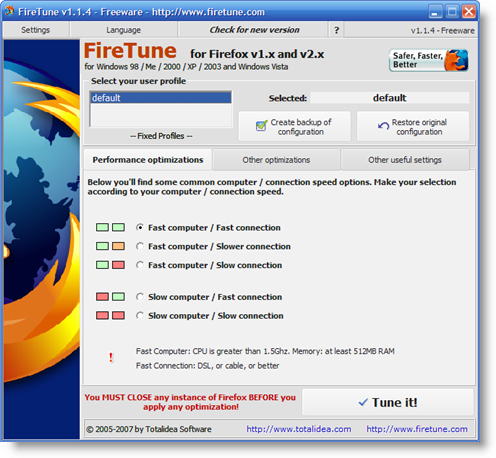
  1. Download & install Firetune (thanks, Web Worker Daily)
    Firetune
  2. Back up your current configuration using the button in the app.
  3. Specify your combination of computer / connection speed (e.g., fast computer, fast Internet connection).
  4. Select Other optimizations and check the box to Enable some performance tweaks common to all configurations.
  5. Click Tune it! and Firetune will update your about:config settings.
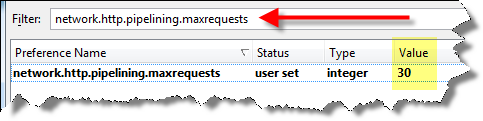
  6. For an extra speed boost, visit your about:config and search for network.http.pipelining.maxrequests.
  7. Double-click network.http.pipelining.maxrequests and set the value to 30, which means that Firefox will make 30 get requests at once:
    network.http.pipelining.maxrequests

Note that Firetune makes all the same changes as outlined on this page, except the maxrequests tweak, which also helps quite a bit.

After following these simple steps, you’ll see that the difference in speed is unbelievable. Happy browsing!

[ Subscribe to gabeanderson.com via email or RSS feed. ]

Monitor Windows CPU Usage

February 12, 2008 – 7:07 pm by Gabe Anderson | 2 Comments »

From the gabeanderson.com archives: I originally published this entry on Wednesday, January 25th, 2006. This entry was never the most popular — 494 page views with 450 unique through 11/13/2006 — but it’s one of the first things I find myself doing whenever setting up a new computer, so hopefully you’ll find it useful.

One update for Windows Vista / Windows 7 users — this will still work, but your path noted below would be this:

C:\Users\%username%\AppData\Roaming\Microsoft\Windows\Start Menu\Programs\Startup


Cool tip of the day, courtesy of persistent.info, is an easy way to always have your Windows Task Manager launch and minimized every time you reboot so that you can obsessively monitor your CPU usage (like I do):

To get the Task Manager to launch minimized at startup reliably, I’ve created a shortcut startup item with the target C:\WINDOWS\system32\cmd.exe /c start /min “Task Manager” taskmgr.exe

cpu_usage.png

It works. I’ve zipped my own cmd.exe startup shortcut for you to download here. Just unzip, throw it in your startup items, and you’re good to go. Note that your startup programs are usually in the below path, unless you’ve changed it to be somewhere on your data partition with a tool like Tweak UI (a tip for another day, but something I’d recommend doing so you can comfortably reinstall your OS and not lose your startup items, among other things):

C:\Documents and Settings\%username%\Start Menu\Programs\Startup

If you’re curious, the items in my taskbar in that screenshot are, from left to right, Trillian, Norton AntiVirus, GoToMyPc, Yahoo Desktop, Mozy, Task Manager, and Volume Control. I have other items in my task bar, which are not shown, but I’ll leave you guessing what those may be. I know, I know, the suspense is killing you.

It’s suddenly snowing like crazy this morning, so it’s starting off to be a very good day.

[ Subscribe to gabeanderson.com via email or RSS feed. ]
Jott: Call a Number, Get a Transcribed Email Reminder

February 5, 2008 – 8:22 am by Gabe Anderson | 1 Comment »

Along with RoboForm and Ta-da List, Jott has become one of the key productivity tools that I use several times daily.

Jott

Jott’s tagline says it all:

Think it. Jott it. Do it.

Anyone who’s read Getting Things Done understands the importance of getting a thought out of your head and into a place where you can later evaluate and act on it — be it a reminder to schedule your car maintenance, pick up the dry cleaning, buy your honey a special somethin’ somethin’ for Valentine’s Day, or note an idea for a future blog entry.

If you’re at all like me and use your email for managing your reminders and projects, then Jott is a perfect complement to your productivity. How often are you driving, running, skiing, coming out of a meeting, or otherwise doing something where you don’t want to forget a thought and don’t have a pen and paper handy? Jott solves that problem.

I use Jott for both personal and work stuff (I can Jott “myself” for work and “my Gmail” for personal reminders).

It’s easy to set up:

  • Create a free account at Jott.com.
  • Add your cell phone number.
  • Start Jotting yourself — Jott knows it’s you based on your phone number!

Jott is awesome. It allows you to do all of this and more:

  • Jott yourself an immediate note that you’ll receive as a transcribed email with a link to the source audio
  • Jott yourself a reminder to send you an email and text message on your cell phone on a particular date and time
  • Jott anyone in your contact list just as you’d Jott yourself
  • Set up Jott Links to external services like Google Calendar so that you can automatically add reminders and events to your calendar

You can even Jott special keywords like “Amazon” — say a product name and get a list of top 5 results in your email.

My #1 Jott feature request: Provide a Jott Link for Ta-da List. There’s already one for Backpack (another product from 37signals), so hopefully Ta-da integration will be coming soon.

[ Subscribe to gabeanderson.com via email or RSS feed. ]
Use RoboForm to Manage Your Passwords & More

February 3, 2008 – 11:54 pm by Gabe Anderson | 5 Comments »

Quite simply, RoboForm is the best password manager utility out there. Once you use RoboForm, you’ll wonder how you lived without it. I’ve been using it since early 2006 or so and it’s one of the utilities I use every single day on both my desktop and my laptop (and keep the data synched between computers).

Roboform

Sure, you’re thinking, “my browser already stores my passwords.” True, both Firefox and Internet Explorer store passwords, but not securely. Your files are stored as “flat” text files on your computer, so prying eyes or malicious users can easily see all your logins.

RoboForm, on the other hand, uses strong encryption to protect all your logins. Oh yeah, and you access them all with a single master password, so no more trying to remember what login you used on what site. Now it doesn’t matter.

Use RoboForm to do all of the following:

  • Automatically & securely store all of your online logins in one place.
  • Protect & unlock everything with one password.
  • Use identities to pre-populate any online form with your contact info, billing details, email address, and more (boring form entry be gone!).
  • Create & store SafeNotes for managing secure snippets of important text (bank account numbers, lock combinations, etc.).
  • Generate secure passwords for creating new site logins (and then RoboForm automatically remembers them for you).

Along with all of this awesomeness, RoboForm stores the URL associated with each of your logins, so you can even tell RoboForm to go to a particular site and login in a single action.

My favorite feature is the RoboForm search box:

RoboForm Search Box

Just click in the box, type in the name of the site you want to visit, hit enter, and RoboForm does the rest:

RoboForm Search Box

The one drawback of RoboForm is that it currently does not support filling in of Flash-based login and registration forms, which are becoming more common these days, but RoboForm support has assured me that their next major release will support Flash forms.

[ Subscribe to gabeanderson.com via email or RSS feed. ]

Use Foxmarks to Synch Your Firefox Bookmarks

February 2, 2008 – 7:48 pm by Gabe Anderson | 3 Comments »

Do you use Firefox on more than one computer? (You do use Firefox, right?) Maybe you already use a Web-based bookmark organizer like del.icio.us or Ma.gnolia.com — which are nice, but not always as fast as local bookmarks.

Or maybe your bookmarks are trapped on your computer. What will you do if your computer crashes or if you want to access your bookmarks remotely?

Enter Foxmarks. I’ve found Foxmarks to the simplest, most reliable bookmark synchronization tool. Set it up once and forget about it.

Foxmarks

With Foxmarks, you can do all of the following:

  • Set up as many Firefox browsers to synch as you’d like.
  • Tell Foxmarks to automatically keep your bookmarks in synch, so whenever you move between computers, you’ll always have your latest and greatest sites right at your fingertips.
  • Download your bookmarks from the server to a new computer, so you’re immediately ready to rock.
  • Access your bookmarks from anywhere via My Foxmarks.

Foxmarks is a free Firefox extension, so installation and setup is a snap.

[ Subscribe to gabeanderson.com via email or RSS feed. ]

Unix/Linux Find & Replace in Multiple Files

February 1, 2008 – 11:00 pm by Gabe Anderson | 37 Comments »

Here’s a classic that I originally published 20 February 2003 – 11:14. This entry was the #1 most popular post between 11/19/2005 and 11/13/2006, receiving 16,443 page views (13,653 unique) during that time.


Since it’s damn near impossible to find online the simplest way to scan a Unix directory of files, search for one text pattern, and replace with another, I am now archiving the simplest method I could find (which I’ve tested and have proven that it works beautifully). Simply cd to the directory where your files live, modify (or leave) the *.php to match the file type you are modifying, then run the following at the command line:

    for fl in *.php; do
    mv $fl $fl.old
    sed ‘s/FINDSTRING/REPLACESTRING/g’ $fl.old > $fl
    #rm -f $fl.old
    done

Uncomment rm -f $fl.old if you don’t want to bother keeping a copy of the old files. Simple, eh? It’s all about sed, baby.

Linux: Replace a string in several text files

[ Subscribe to gabeanderson.com via email or RSS feed. ]

Use Ta-da List to Manage Your Lists

February 1, 2008 – 8:00 am by Gabe Anderson | Comments Off on Use Ta-da List to Manage Your Lists

Who doesn’t love a good list? Without a list, how will you remember what to pick up from the store? How will you manage your work day? How will you set goals for yourself or your home improvement projects? Note your great blog ideas? And how will you remember what you’re supposed to bring on your next trip?

Those are all things I manage in lists. But what kind of list management tool is best?

There are a gazillion ways to manage your lists — from good ol’ fashioned pen ‘n paper to the Palm Pilot (I had one of the originals back in 1996 or 1997) to the bulky organizer to the email inbox. And everywhere you look online there’s a little standalone app or widget you can add to your customized Yahoo or Google start page to manage your lists.

I’ve tried them all and I’m here to say that there’s nothing like Ta-da List. From the good folks at 37signals (whose design blog is a good read), Ta-da List just works. It’s simple to set up and simple to use.

Ta-da List
Ta-da List has no bells and whistles, which I think is a good thing. You can do all of the following:

  • Create, edit, manage unlimited lists.
  • Add as many items as you want to each list.
  • Easily tick a box to cross things off your list (but they’re saved in small text at the bottom if you ever want to reference your completed items again).
  • Email, share, or subscribe to the RSS feed of any of your lists.

And yes, you can use Ta-da List with your iPhone.

Here’s a screenshot of some of My Lists in Ta-da List:

Gabe
See how versatile it can be?

I’ve been using Ta-da List for a couple years now and it’s great. 37signals has a number of other cool Web apps, too.

[ Subscribe to gabeanderson.com via email or RSS feed. ]

How to Configure Windows XP to Login Automatically

January 31, 2008 – 6:37 pm by Gabe Anderson | 3 Comments »

It’s still only Day #1 of the new gabeanderson.com and I already have a list of more than 2 dozen topics I’ll be sharing with you. It’s actually pretty exciting coming up with ideas. There are so many fun tips ‘n tricks about how I use my computer that I’m looking forward to documenting both for my own reference and to improve your own computing experience.

So here we go — let’s get right into it.

How to Configure Windows XP to Login Automatically

For security reasons on your laptop or home computer, you may like the fact that, by default, Windows requires you to login to access your operating system for your user account (I prefer that on my laptop so that if it’s lost or stolen, I’ll worry less about my files).

But if you’d rather login automatically when you power up or reboot your machine, there’s a simple way to do so (this is how I have my home computer configured).

This is useful under a number of circumstances:

  • You’re the only one who uses your computer (or you share files with someone else).
  • You aren’t worried that someone may access your files.
  • You have applications that run automatically on reboot (perhaps a virus or registry scan).
  • You need to access your computer remotely & in the event of a power outage when you’re away, you want it to be ready for you to access it.

Here’s how to do it:

  1. Go to your Start menu, then select the Run command.
  2. When the Run window opens, type (or copy ‘n paste) this command: control userpasswords2.
  3. You’ll see an advanced view of your User Accounts Control Panel.
  4. Uncheck the box that says Users must enter a user name and password to use this computer.
  5. User Accounts: How to Enable Automatic Windows XP Login

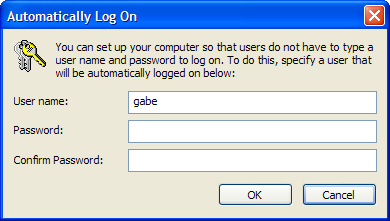
  6. Click Apply or OK and you’ll be prompted to enter the username and password of the user you’d like to have login automatically (you do know your password, right?).
    Automatically Log On password confirmation

And that’s it! Next time your reboot or power up your machine, you won’t have to worry about manually logging in.

Want to change it back? Just repeat the steps above anytime, but check the box, of course.

[ Subscribe to gabeanderson.com via email or RSS feed. ]